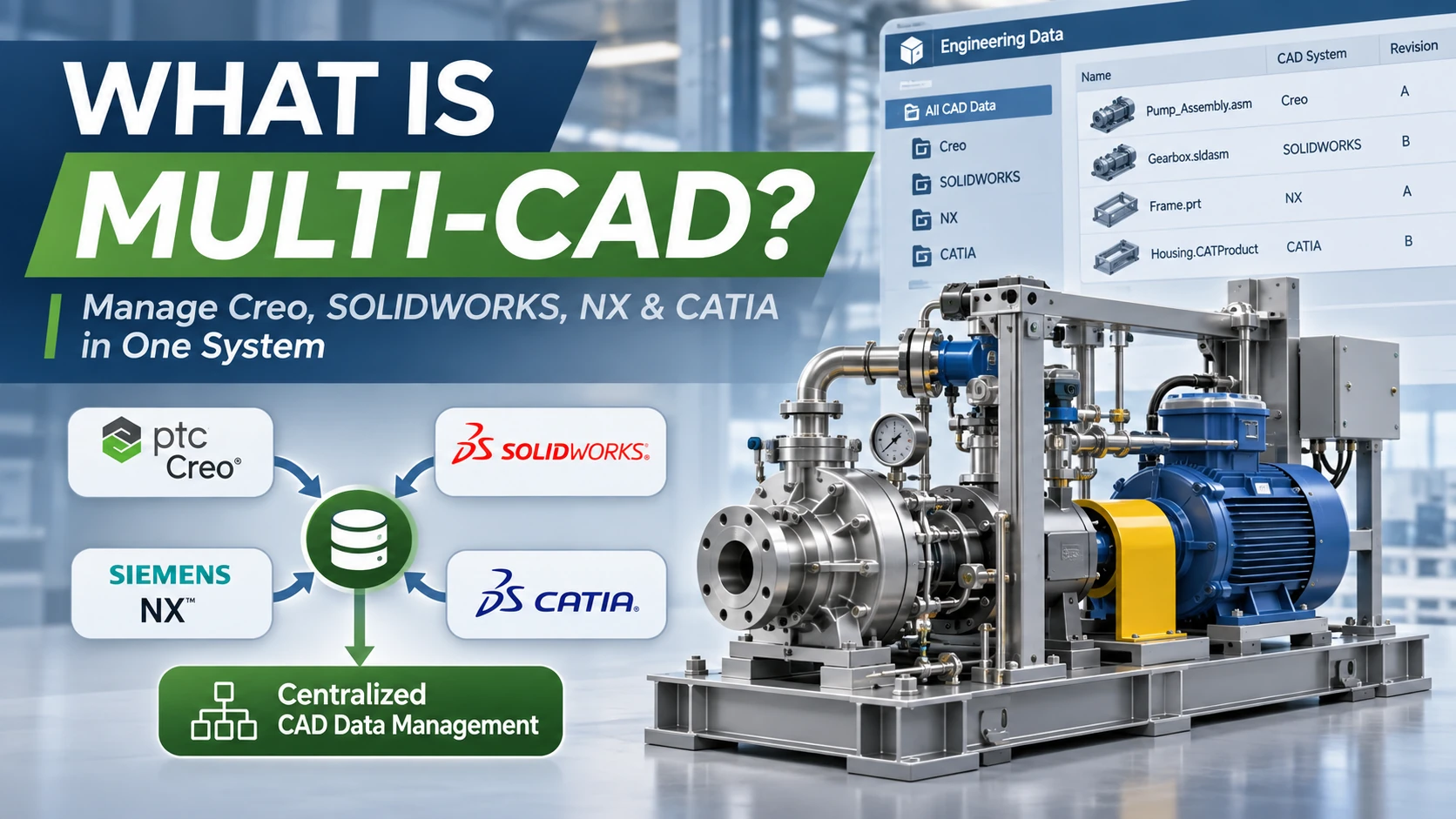
What Is Multi-CAD? Managing Creo, SOLIDWORKS, NX and CATIA in One System
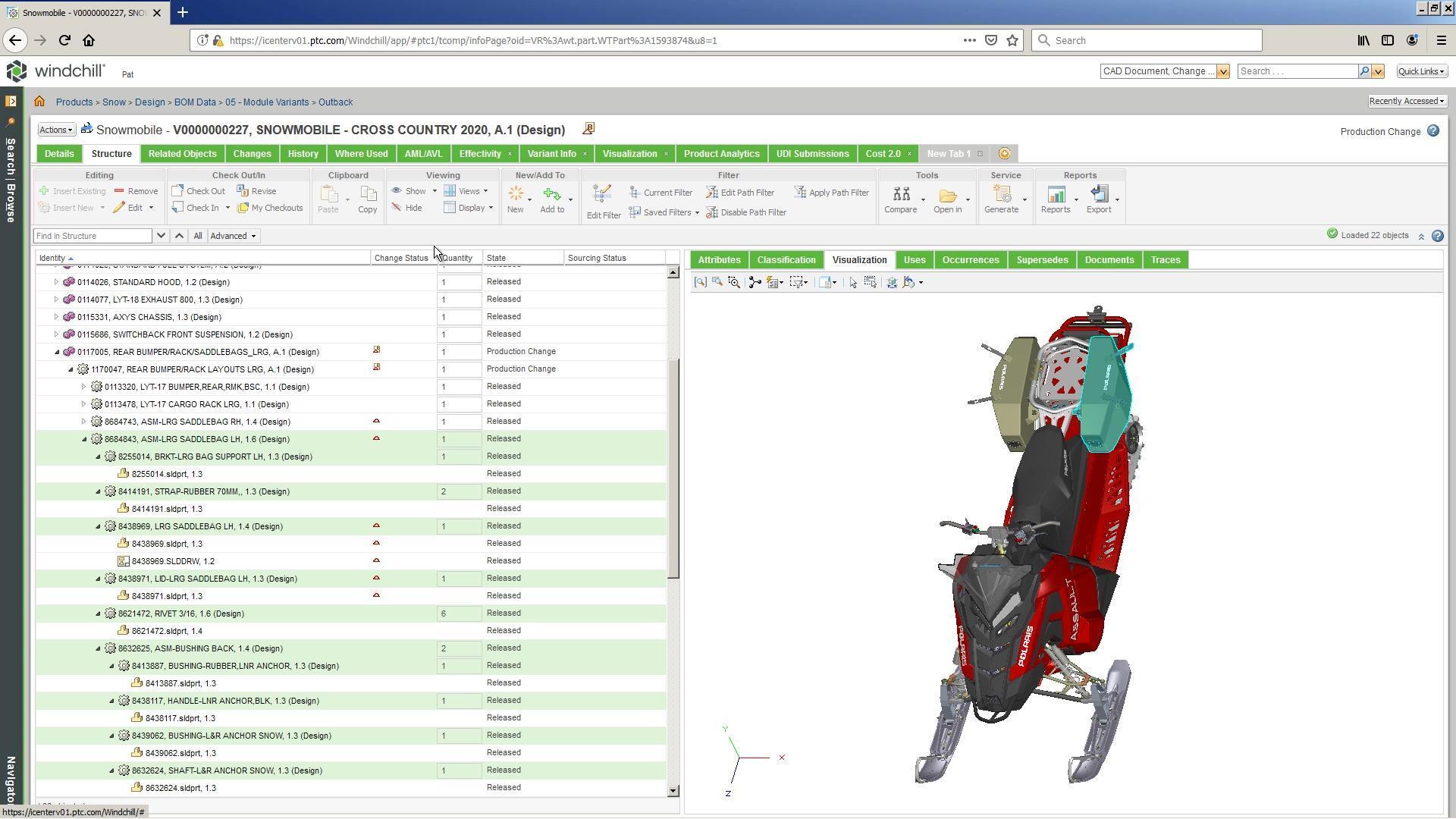 What is Multi-CAD? Multi-CAD describes an engineering environment where design data originates from multiple CAD applications, such as PTC Creo, SOLIDWORKS, NX and CATIA. In a managed Multi-CAD environment, manufacturers can retain their specialized authoring tools while using a central PDM or PLM system to control native CAD files, revisions, assembly relationships, access permissions and engineering release processes.
This approach is relevant when an engineering department uses Creo, customers deliver CATIA models, suppliers develop components in SOLIDWORKS and other teams work in NX. PTC Windchill supports multi-CAD data management through appropriate CAD integrations, including Windchill Workgroup Manager for supported applications. However, centralized CAD management should not be confused with universal conversion or full native feature editing across different CAD tools.

What Is Multi-CAD in Engineering and Manufacturing?
Multi-CAD can refer to working with geometry from multiple CAD applications or managing the resulting engineering data through a common PDM/PLM platform. These are related but distinct capabilities.
CAD interoperability focuses on using, exchanging or referencing geometry between different applications. Multi-CAD data management focuses on governing files, metadata, assembly dependencies, revisions and related engineering processes.
For example, an industrial machinery assembly may include components designed in Creo alongside supplier subassemblies created in NX or SOLIDWORKS. The engineering team must identify which files belong to the approved configuration, whether dependent components are present and how supplier revisions affect the larger assembly.
A well-configured Multi-CAD system addresses these governance requirements without necessarily requiring every team to replace its preferred design application.
Why Do Manufacturers Need Multi-CAD Data Management?
1. Customers and Suppliers Use Different CAD Systems
Industrial manufacturers frequently exchange native CAD data with suppliers, OEM customers and external engineering teams. Requiring every participant to use the same CAD platform may be impractical.
2. Reduce Disconnected File Management
When engineering data is distributed across local folders, email attachments and shared drives, identifying the approved file revision becomes difficult. Centralized management supports controlled access and clearer ownership of technical information.
3. Govern Revisions and Engineering Changes
Design updates can affect drawings, component dependencies and manufacturing deliverables. Revision and lifecycle management help distinguish work-in-progress data from approved engineering releases.
4. Preserve CAD Assembly Relationships
Native CAD assemblies rely on component references and structural dependencies. Controlled data management helps organize these relationships within supported integrations and reduces problems caused by unmanaged file movement.
5. Support Cross-Functional Collaboration
Engineering, manufacturing, quality and tooling teams need access to relevant technical information. A governed platform can make approved data available according to user roles and configured permissions.
How Does PTC Windchill Manage Creo, SOLIDWORKS, NX and CATIA?
PTC Windchill manages engineering data through CAD document objects, product structures and related lifecycle processes. Creo Parametric integrates with Windchill, while supported third-party CAD applications can connect through Windchill Workgroup Manager or an applicable integration framework.
| CAD application | Typical native file types | Management approach |
|---|---|---|
| PTC Creo Parametric | .prt, .asm, .drw | Creo and Windchill CAD data management integration |
| SOLIDWORKS | .SLDPRT, .SLDASM, .SLDDRW | Supported Windchill Workgroup Manager integration |
| NX | .prt | Supported Windchill Workgroup Manager integration |
| CATIA V5 | .CATPart, .CATProduct, .CATDrawing | Supported Windchill Workgroup Manager integration |
The exact capabilities depend on the CAD version, Windchill release, integration components and configuration. CATIA V5 support should not be assumed to represent every CATIA or 3DEXPERIENCE environment.
PTC documents supported file types in the Windchill Workgroup Manager file type reference.
What Is Windchill Workgroup Manager?
Windchill Workgroup Manager (WWGM) connects supported CAD authoring applications with Windchill so engineers can perform appropriate product data management actions while working with their engineering files.
Workspace and Commonspace
A workspace is an area used for engineering work in progress. Commonspace refers to managed Windchill data that authorized users can access according to the applicable permissions and lifecycle state.
Check-Out and Check-In
Check-out supports controlled modification of managed engineering data. Check-in records updated data in the managed environment according to the configured workflow.
Revision and Iteration
Revisions and iterations distinguish different states or updates of engineering objects. Their naming and release behavior depend on company-specific governance rules.
CAD Documents and Product Structures
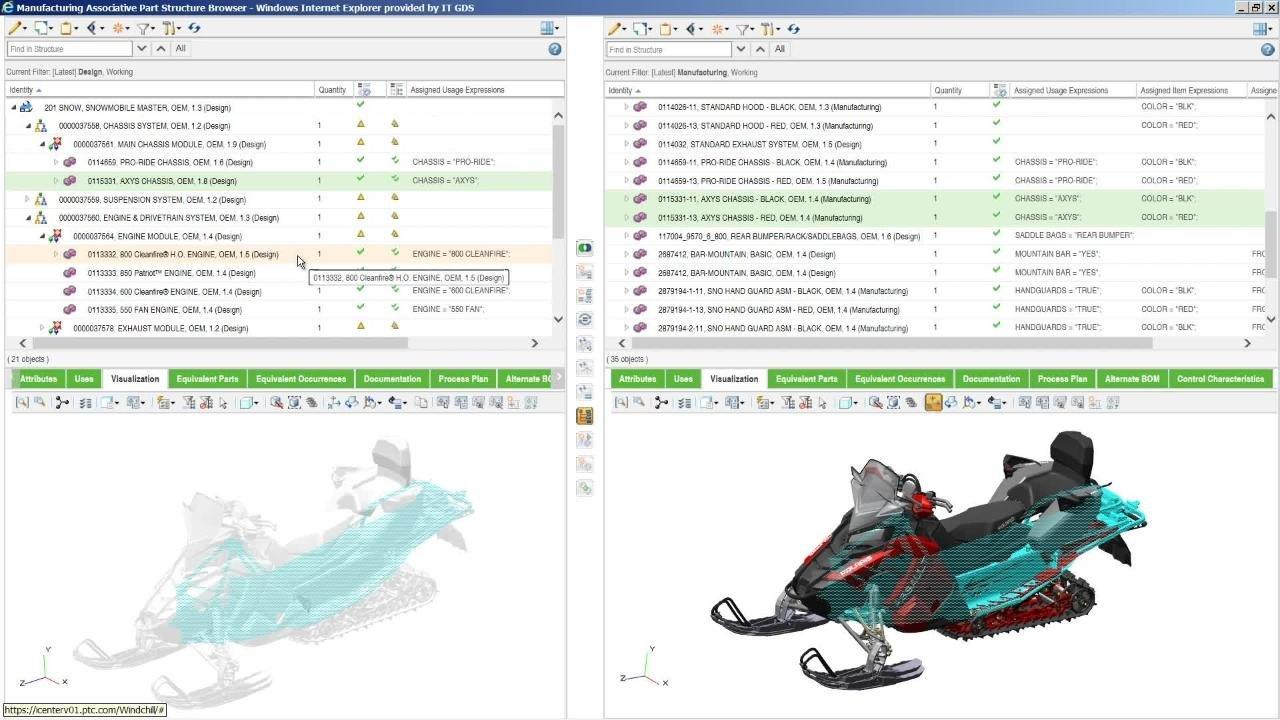
Windchill CAD documents represent managed CAD information, including native models and drawings. Product structures and BOMs can be related to CAD structures through appropriate associations and processes.
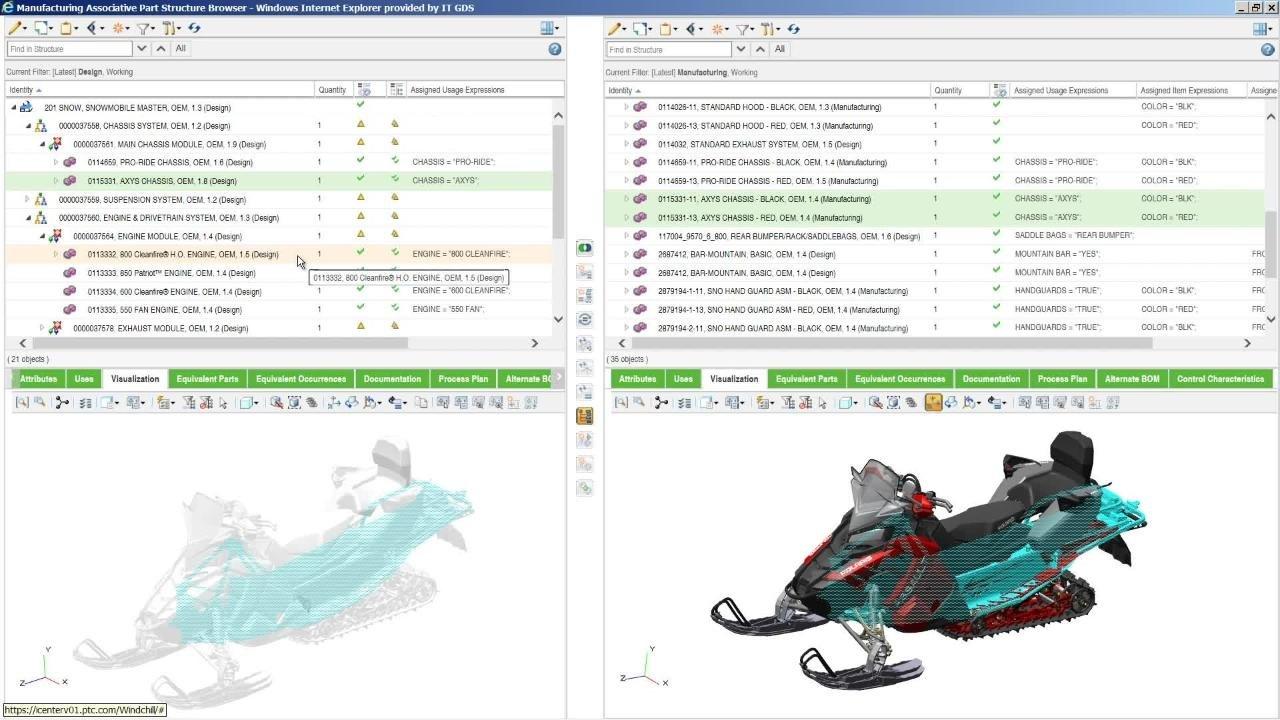
CAD assembly structures and manufacturing BOMs are not automatically identical. Their relationships must be designed around actual engineering and production requirements.
For an explanation of these concepts, refer to PTC Windchill CAD Data Management.

How to Implement a Multi-CAD Data Management Workflow
Step 1: Inventory Existing CAD Applications
Identify the applications used by internal departments, customers and suppliers. Record versions, native formats, user groups and data ownership.
Step 2: Define Governance Rules
Agree on part numbering, naming conventions, revision schemes, lifecycle states, approval responsibilities and product data ownership.
Step 3: Validate Integration Compatibility
Check each authoring application against the supported Windchill and Workgroup Manager versions. Review the appropriate licensing and integration requirements.
Step 4: Configure Workspaces and Data Structures
Establish the necessary product contexts, libraries, roles and workspaces. Include representative assemblies and dependencies in the initial configuration tests.
Step 5: Migrate and Validate Engineering Data
Transfer selected engineering data using a controlled method. Validate file relationships, metadata, part identification, revisions and assembly integrity.
Step 6: Establish Release Workflows
Define the process for check-in, review, approval and release. Confirm how manufacturing and supplier stakeholders obtain authorized product information.
Step 7: Train Users and Run a Pilot
Train engineers in the workflows relevant to their CAD application. Test file retrieval, modifications, check-in/check-out, revision changes and access permissions before broader deployment.
Managing Multiple CAD Systems?
Explore how PTC Windchill can help your organization govern Creo, SOLIDWORKS, NX and CATIA engineering information through appropriate integrations.
Engineering Example: A Multi-CAD Machinery Development Project
Consider a machinery manufacturer that develops the main product assembly in Creo, receives a mechanism designed in NX and sources a SOLIDWORKS subassembly from an external supplier. This is an illustrative example rather than a documented customer deployment.
The engineering team needs to preserve native files, review design structures, manage revisions and determine which data is approved for production.
A controlled Multi-CAD environment can provide a governance framework for the integrated CAD documents and related engineering data. Individual engineering teams can continue using their specialized authoring tools according to the supported workflow.
If a supplier updates a component, the organization must identify the affected documents, dependent assemblies, engineering change requirements and release decisions.
Using non-native CAD geometry within Creo is a separate interoperability question. Geometry access, associativity and feature editability depend on supported capabilities and should be tested rather than assumed.
Multi-CAD Management vs STEP and IGES Conversion
| Criteria | Multi-CAD Management | STEP / IGES Exchange |
|---|---|---|
| Primary objective | Product data governance and collaboration | Geometry exchange |
| Native files | Can manage supported native CAD documents | Creates a neutral exchange representation |
| Revision control | Managed lifecycle and release processes | No inherent lifecycle governance |
| Assembly relationships | Depends on the CAD integration | Depends on export and import behavior |
| Typical scope | PDM and PLM | CAD interoperability |
The two approaches complement each other. Neutral CAD formats support geometry exchange, while managed Multi-CAD environments address ongoing control of engineering information, revisions and collaboration.
Common Challenges in Multi-CAD Implementation
- Version compatibility: CAD applications and integration components must match supported combinations.
- Inconsistent part identification: Duplicate or conflicting part numbers can appear across CAD systems.
- Broken references: Assemblies may fail to resolve components when dependencies are not managed correctly.
- Confusing CAD structures with BOMs: Manufacturing requirements may differ from the native assembly structure.
- Assuming universal editability: Storing or viewing a file does not guarantee full native feature editing in another CAD application.
- Insufficient access governance: Customer and supplier information should be protected through project and role-based permissions.
When Should a Manufacturer Consider Multi-CAD Data Management?
 Multi-CAD management is particularly relevant when engineering teams use several CAD applications, regularly receive native models from suppliers or customers, and need controlled revision and assembly management.
For companies exchanging only occasional neutral-format models, a full enterprise PDM or PLM deployment may not be the immediate priority. The decision should reflect the scale and complexity of engineering collaboration.
For broader lifecycle management concepts, read What Is PTC Windchill?. For specific implementation and software considerations, see PTC Windchill PLM Software.
Frequently Asked Questions About Multi-CAD
1. What is Multi-CAD?
Multi-CAD describes working with or managing engineering data from multiple CAD applications, such as Creo, SOLIDWORKS, NX and CATIA, through suitable tools and integrations.
2. Can Windchill manage Creo and SOLIDWORKS?
Yes. Windchill supports Creo data management and SOLIDWORKS integration through the appropriate supported mechanisms.
3. Does Windchill support NX and CATIA?
Yes. PTC documents support for NX and CATIA V5, subject to the relevant software versions and integration requirements.
4. Does Multi-CAD require converting all files to Creo?
No. A managed Multi-CAD environment can govern supported native CAD documents without requiring conversion of every file into the Creo format.
5. Can Multi-CAD automatically convert all design features?
No. Geometry conversion, associativity and feature editability depend on the CAD applications, file formats and interoperability methods used.
6. What does Windchill Workgroup Manager do?
Windchill Workgroup Manager connects supported CAD authoring applications with Windchill for engineering data management operations.
7. Does Multi-CAD replace ERP?
No. Multi-CAD management focuses on engineering design data, while ERP manages business resources and operational transactions.
8. How should a company start a Multi-CAD implementation?
Begin by inventorying CAD applications and versions, evaluating assembly dependencies, defining data governance and testing a representative engineering project.
Conclusion: Centralized Governance Without a Single CAD Requirement
Multi-CAD data management helps manufacturers coordinate engineering information created in different design applications. PTC Windchill, together with suitable integrations, supports controlled storage, revision management, CAD document structures and collaborative workflows.
The objective is not to replace every CAD platform, but to create a consistent environment for managing technical information across engineering teams, suppliers and manufacturing stakeholders.
Request a PTC Windchill Consultation or Demo
Contact CADCAM SOFTWARE to discuss your CAD application landscape, engineering data governance requirements and suitable Windchill configurations.
Request Windchill Consultation
Hotline: 0907 858 000 | Email: info@cadcamsoftware.vn